Shopogolic
Parcel Protection and Claims
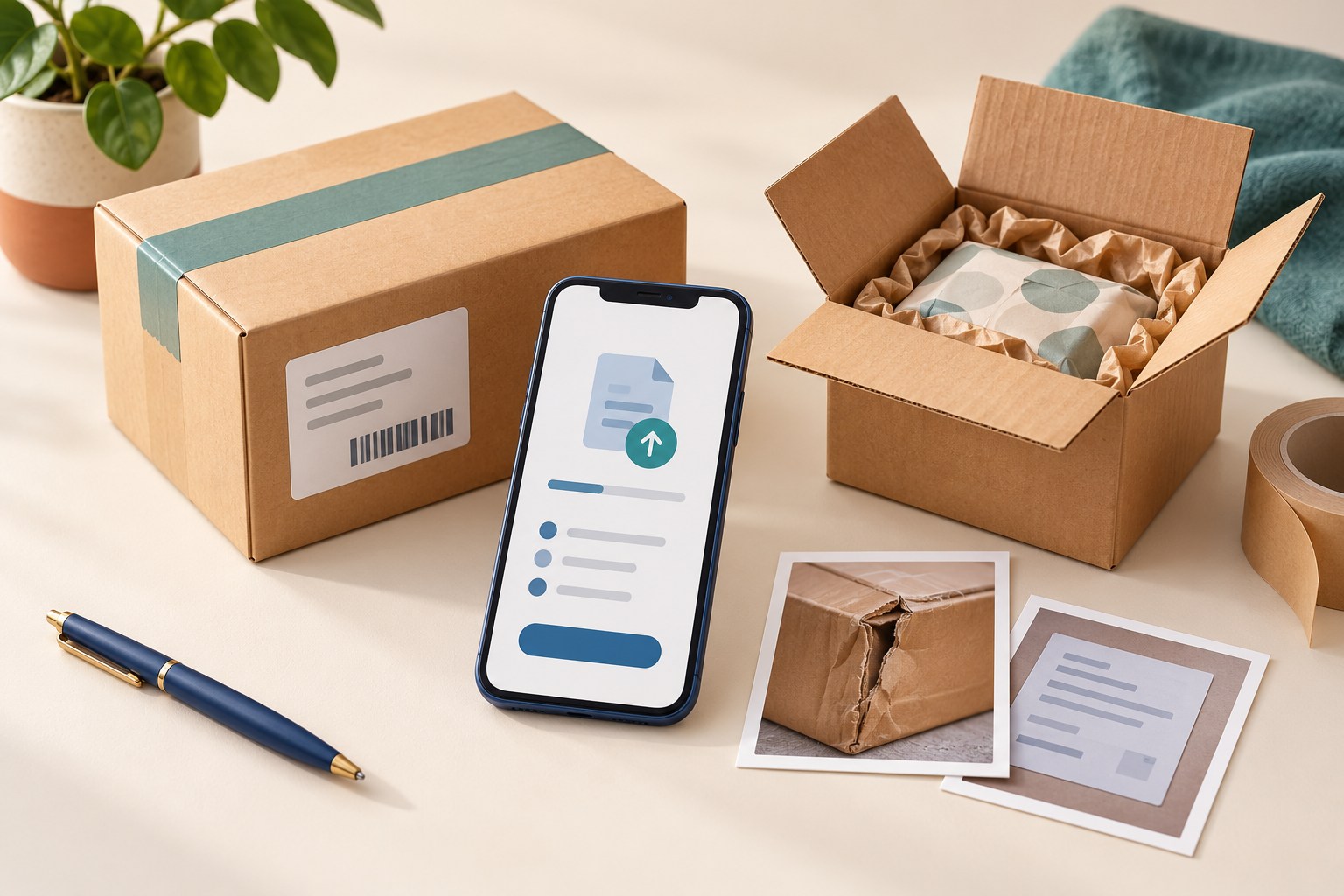
A problem with your parcel? Start with its details
Parcel Protection is an optional service for your parcel; availability and conditions depend on the delivery method. If Parcel Protection was selected for your shipment, open the parcel in your account and check the available Claim option. Your delivery method, the claim window and the documents you provide determine how the request is assessed.
Opening a Claim starts a review. It does not guarantee a payment or replace the conditions of the selected service.
Open my accountAsk supportHow it works
Check the parcel, explain the problem and keep the supporting evidence.
Check the parcel
Open the shipment in your account and review its delivery method, protection limit and claim window.
Open claim
When the option is available, select Open claim. Choose the reason to see the documents required for that request.
Complete the form
Describe the issue, affected items and quantities. Attach the requested evidence and check the information before submitting.
Follow the review
Submit the request, retain the goods and packaging, and follow up on any questions from the team.
Check the claim window for your delivery method
Claim windows are set separately for each delivery method. The form shows the remaining time for the parcel. The opening date and length of the window are not the same for every service.
If the window has closed before you submitted the form, contact support. Do not treat the absence of tracking updates as automatic confirmation that the parcel is lost.
What to enter in the Claim form
The parcel summary shows the delivery method, recipient country, dispatch information, declared value, protection limit and remaining claim window. Check that you have opened the correct parcel.
Reason
Select the reason that matches the problem. The list of required documents appears after this choice.
Date and place
Enter when the problem was discovered and where it was found.
Description
Explain what happened and what is affected. The description field accepts up to 1,000 characters.
Affected items
Check each item’s shipped quantity. Enter the quantity you are claiming for and its unit cost, using your purchase documents. Review the requested amount before submitting.
Documents
Attach the files requested for your reason. The form currently accepts JPG, PNG, HEIC, PDF, MP4 and MOV: up to 10 files, 10 MB each.
Confirm and submit
Confirm that the information is accurate and that you have not received compensation, a refund or a replacement from another party. If this statement is true, accept the confirmations and select Submit claim. If you have already received reimbursement or a replacement, contact support instead of making an inaccurate confirmation.
Keep the evidence while the request is reviewed
Keep purchase documents and any available photos of the parcel, label, packaging and affected contents. Follow the specific document list displayed for the selected reason.
If you receive a refund, replacement or compensation from the seller, carrier or another party after submitting the Claim, inform Shopogolic.
The protection amount shown for the parcel is a limit, not a promised payment. Check the applicable service conditions for coverage, exclusions and assessment. This page explains the process; it does not create new protection terms.
Read full conditionsOpen the relevant parcel in your account and use Open claim when the button is available. Select a reason and follow the form’s document requirements.
No. Each delivery method has its own window. Check the dates or remaining time displayed for your parcel. A time shown in an example is not a rule for every shipment.
Contact support about the parcel. Explain the issue and provide the documents you have; do not submit the issue against an unrelated shipment.
Select the reason in the form to see the required list. Use documents and images that relate to this parcel and the affected goods. Keep the original files and packaging during review.
No. The limit is not an automatic compensation amount. The outcome depends on the delivery service conditions, goods, documents and review of the issue.
If you already received compensation, a refund or a replacement from another party, contact support before using the form. Do not confirm that no reimbursement was received when that is not true. If reimbursement arrives after you submit, inform Shopogolic.